Quickstart
This is the shortest path from a clean workstation to a finished Ranger package.
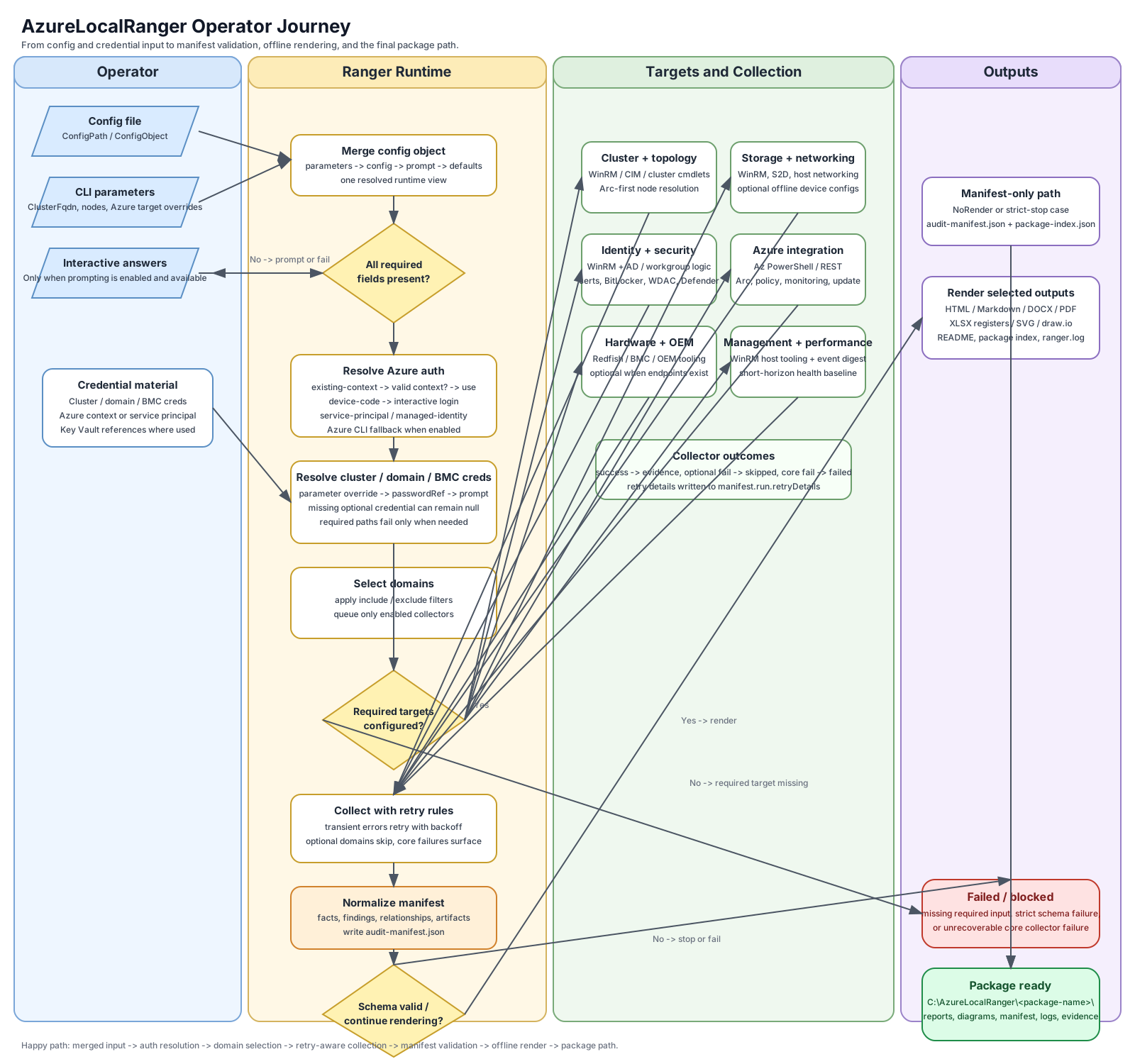
Step 1: Check Prerequisites
Use -InstallPrerequisites in an elevated session if you want Ranger to install missing RSAT and Az dependencies.
Step 2: Run Ranger — three paths, ranked
Pick the path that matches how thorough you want to be. All three produce the same output package; they differ only in how you supply configuration.
Path 1 — Guided wizard (recommended for first runs)
The wizard walks every question — environment, cluster, Azure auth, optional BMC, output mode, scope — with inline GUID validation and a review screen before anything runs. Supports all six Azure auth methods (existing-context, runtime prompt, service-principal, managed-identity, device-code, azure-cli). At the end you can save the YAML config, launch a run immediately, or both. Existing save paths trigger an overwrite confirmation rather than being silently clobbered.
See the Wizard Guide for a full walkthrough with example answers.
Path 2 — Config file + run
New-AzureLocalRangerConfig -Path .\ranger.yml
# edit .\ranger.yml in your editor
Invoke-AzureLocalRanger -ConfigPath .\ranger.yml
The generated YAML is annotated and marks mandatory values. Best for version-controlled configs, CI / scheduled runs, and team-standard deployments. You can override any structural value at runtime without editing the file:
Invoke-AzureLocalRanger `
  -ConfigPath .\ranger.yml `
  -ClusterFqdn tplabs-clus01.contoso.com `
  -EnvironmentName tplabs-prod-01 `
  -ShowProgress
Path 3 — Parameters or zero-config
# Minimum: 2 fields — Ranger lists HCI clusters in the subscription and picks one
Invoke-AzureLocalRanger -TenantId <guid> -SubscriptionId <guid>

# Named cluster: skip the selection prompt
Invoke-AzureLocalRanger -TenantId <guid> -SubscriptionId <guid> -ClusterName <name>

# Bare: prompts interactively for whatever is missing
Invoke-AzureLocalRanger
Fastest for ad-hoc runs. Azure Arc auto-discovery fills in the resource group, cluster FQDN, nodes, and AD domain from the selected HCI cluster resource. Cluster enumeration is explicitly scoped to the supplied subscription ID, even when the caller's current Az context points to another subscription. When exactly one cluster exists it is auto-selected; when multiple exist, Ranger prints a numbered menu. Under -Unattended, multi-cluster subscriptions throw RANGER-DISC-002 so the operator knows to pass -ClusterName.
Before collection starts, interactive runs print a Resolved target summary containing the tenant, subscription, resource group, cluster, endpoint, and nodes. A value shown as <not resolved> includes an actionable warning when it affects local collection. This summary contains no passwords or secrets.
-ShowProgress
Add -ShowProgress to any invocation for a live per-collector progress display (requires the optional PwshSpectreConsole module; automatically suppressed in CI and -Unattended mode).
Run mode prompt (v2.6.5)
For Path 2 and Path 3, when -OutputMode is not supplied, Ranger asks which mode to use before the run starts:
[Ranger] Run mode:
  (1) current-state  — recurring operational snapshot
  (2) as-built       — formal handoff documentation
[Ranger] Select [Enter = current-state]:
Press Enter to keep the default, or type 1/2 (or the mode name). To skip the prompt, pass -OutputMode current-state or -OutputMode as-built on the CLI, or set output.mode in your config file.
Network device config import (v2.6.5)
Pass switch or firewall running-config export files directly without a config file. Individual files or full directories are both accepted:
# Single file
Invoke-AzureLocalRanger -TenantId <guid> -SubscriptionId <guid> `
  -NetworkDeviceConfigs C:\exports\core-sw01.cfg

# Directory — recursively expanded to .txt, .cfg, .conf, .log files
Invoke-AzureLocalRanger -TenantId <guid> -SubscriptionId <guid> `
  -NetworkDeviceConfigs C:\exports\switch-configs\
Ranger maps the configs to domains.hints.networkDeviceConfigs before the networking collector runs.
Running in disconnected or semi-connected environments
Ranger probes all transport surfaces before collectors run. If cluster nodes are unreachable on WinRM ports but are Arc-registered, it automatically falls back to Arc Run Command transport (requires Az.ConnectedMachine and an active Az context). Collectors whose transport is confirmed unavailable are skipped with status: skipped rather than failing the run.
Step 3: Open the Output Package
By default Ranger writes to:
Key artifacts are:
manifest\audit-manifest.jsonpackage-index.jsonranger.logreports\*.htmlreports\*.docxreports\*.pdfreports\*.xlsxdiagrams\*.svg
Step 4: Re-Render Without Live Access
Export-AzureLocalRangerReport \
  -ManifestPath .\manifest\audit-manifest.json \
  -Formats html,markdown,docx,xlsx,pdf,svg
That reuses the saved manifest and does not reconnect to the cluster or Azure.
Step 5: Schedule an Unattended Run
For recurring runs, use -Unattended so Ranger never prompts for input and emits a scheduler-friendly run-status.json file.
Invoke-AzureLocalRanger \
  -ConfigPath .\ranger.yml \
  -Unattended \
  -OutputPath \\fileserver\AzureLocalRanger \
  -BaselineManifestPath .\baseline\audit-manifest.json
Recommended unattended credential posture:
- Azure: service principal, managed identity, or pre-existing Az context
- Secrets:
keyvault://references instead of inline passwords - Scheduler templates: see
samples/task-scheduler-azurelocalranger.xmlandsamples/github-actions-scheduled-ranger.yml