Architecture Deep Design
This page provides detailed architecture and design decision guidance for AVD on Azure Local — covering control plane composition, session host topologies, identity patterns, network requirements, and the full 9-phase deployment model.
Control Plane Components
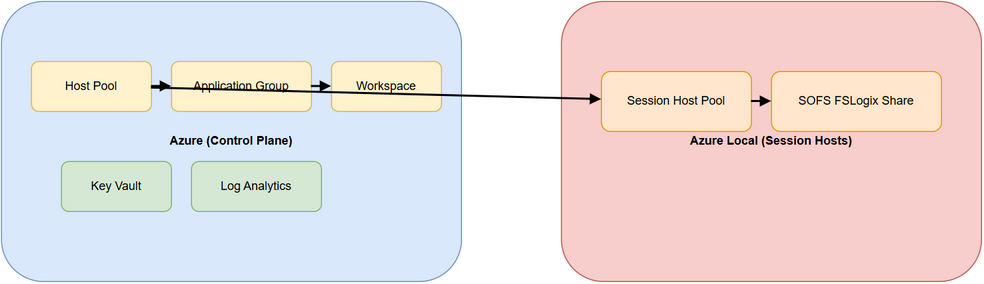
The AVD control plane lives entirely in Azure and is subscription-scoped. All resources are idempotent and managed as Infrastructure as Code. The control plane must be deployed before any session hosts can register.
TIP
Diagram source The draw.io source for this diagram is at docs/assets/diagrams/control-plane.drawio. Open in draw.io → File → Export As → PNG → save to docs/assets/images/control-plane.png.
| Component | Location | Responsibility |
|---|---|---|
| Host Pool | Azure | Logical grouping of session hosts. Defines personal vs pooled assignment, load-balancing algorithm (breadth-first or depth-first), and diagnostics scope. All session hosts register with a single host pool. |
| Application Group | Azure | Publishes desktops or RemoteApp applications. Linked to a host pool. Role assignments on the Application Group control which users see which published resources. |
| Workspace | Azure | User-facing aggregator. Maps one or more Application Groups into a feed endpoint. End-user clients subscribe to the Workspace to discover their published resources. |
| Key Vault | Azure | Stores domain-join credentials, registration tokens, and certificates used during provisioning. Access is controlled via Managed Identity or a service principal with least-privilege RBAC. |
| Log Analytics Workspace | Azure | Central diagnostics ingestion for AVD control-plane diagnostic categories (Checkpoint, Error, Management, Connection, HostRegistration, AgentHealthStatus) and session-host agent telemetry. |
| Diagnostic Settings | Azure | Ties AVD resources (host pool, workspace, application group) to the Log Analytics Workspace. Each category must be explicitly enabled — do not enable all categories in production without evaluating ingestion cost. |
| Storage Account | Azure | Optional. Used for MSIX app attach packages or as a cloud-side FSLogix backend for Entra-only deployments using Cloud Cache. |
Design Recommendations
Treat the control plane as subscription-scoped and idempotent. Deploy it once; all session host operations consume its output parameters (hostPoolResourceId, workspaceResourceId, logAnalyticsWorkspaceId, keyVaultResourceId).
- Prefer Bicep modules (or Azure Verified Modules) — they provide consistent parameter contracts and safe redeployment.
- Grant Key Vault access via Managed Identity assigned to the deployment principal. Avoid storing credentials in pipeline variables or parameter files.
- Keep diagnostic settings scoped to the categories you will actively alert on. High-volume categories (
Connection,Checkpoint) at full retention drive significant Log Analytics cost. - Use a dedicated Log Analytics Workspace for AVD — sharing with other workloads makes cost attribution and retention tuning harder.
Session Host Topologies
Three topology options exist for Azure Local AVD. The choice drives how session hosts reach profile storage, how fault isolation works, and what your identity and network requirements look like. Pick once — topology influences IP planning, CSV capacity, and anti-affinity rule scope.
TIP
Diagram source Draw.io source: docs/assets/diagrams/avd-session-host-topology.drawio. Export → PNG → docs/assets/images/avd-session-host-topology.png.
Option 1 — Single Cluster
All session host VMs run on one Azure Local cluster. The SOFS guest cluster (see FSLogix Integration) also runs on the same cluster.
| Characteristic | Detail |
|---|---|
| Fault scope | A cluster-level failure takes out both session hosts and SOFS simultaneously |
| Identity requirement | Single AD domain and DNS zone |
| Network requirement | Same compute VLAN for hosts and SOFS; no routing between clusters |
| Anti-affinity rules | Applied within the single cluster to spread SOFS VMs across physical nodes |
| Maximum scale | Constrained by node count and physical CPU/RAM on one cluster |
Use this when: the environment is a single site, users number under ~300 concurrent, and operational simplicity outweighs the risk of a shared-fate outage.
Do not use this when: you have a business continuity requirement that cannot tolerate a full cluster outage taking down all session capacity simultaneously.
Option 2 — Multi-Cluster
Session hosts span two or more Azure Local clusters — typically across physical racks, rooms, or sites. The host pool in Azure brokers sessions across all clusters.
| Characteristic | Detail |
|---|---|
| Fault scope | A cluster failure removes that cluster's session hosts; other clusters continue serving sessions |
| Identity requirement | AD DS must replicate to both sites; DNS must resolve from all clusters |
| Network requirement | Clusters need routed connectivity to shared or replicated FSLogix storage |
| Profile storage | Replicated SOFS (DFS-R or storage-level) or Azure Files as a neutral profile endpoint |
| Maximum scale | Effectively unlimited — add clusters to add capacity |
Use this when: you need active-active capacity spread across fault domains, geographic distribution, or compliance-driven data residency.
Why shared profile storage is harder here: session hosts on Cluster A must still reach the SOFS on Cluster B during a failover. This means the SOFS either needs to be replicated (with synchronisation lag risk), or you adopt FSLogix Cloud Cache pointing at an Azure Files endpoint that is reachable from both clusters. Neither is free — see FSLogix Integration for the Cloud Cache trade-offs.
Option 3 — Distributed SOFS Guest Cluster (Recommended)
The recommended pattern for most Azure Local AVD deployments. Session hosts run on the Azure Local cluster alongside a dedicated SOFS guest cluster — a 3-VM Failover Cluster with Storage Spaces Direct running inside the Azure Local VMs specifically to host FSLogix shares.
| Characteristic | Detail |
|---|---|
| Profile endpoint | \\sofs-access-point\fslogixprofiles — single continuously-available SMB share |
| Fault scope | SOFS guest cluster tolerates 1 VM failure; Azure Local host layer tolerates 1 physical node failure; stacked resiliency |
| Isolation | SOFS VMs are dedicated workload — no CPU/memory contention with session hosts |
| Patching | SOFS cluster patched independently; session hosts don't know or care |
| Anti-affinity | SOFS VMs pinned across separate CSV volumes and physical nodes via Azure Local anti-affinity rules |
Why dedicated guest cluster instead of sharing the Azure Local SOFS: if you co-locate FSLogix shares directly on the Azure Local infrastructure SOFS, a maintenance or upgrade operation on the host cluster affects profile availability. A guest cluster is a first-class workload with its own failover boundary — maintenance on the host cluster can pause individual SOFS VMs briefly but the guest cluster maintains quorum and continues serving profiles.
Full SOFS infrastructure is covered in the companion repository: azurelocal-sofs-fslogix.
Topology Decision Matrix
| Factor | Single Cluster | Multi-Cluster | SOFS Guest (Recommended) |
|---|---|---|---|
| ≤ 300 concurrent users | ✅ | ✅ | ✅ |
| 300–1,000 concurrent users | ⚠ (scale limit) | ✅ | ✅ |
| 1,000+ concurrent users | ❌ | ✅ | ✅ (multiple SOFS clusters) |
| Single-site operation | ✅ | ❌ | ✅ |
| Active-active multi-site | ❌ | ✅ | ⚠ (needs replicated storage) |
| Profile HA during host maintenance | ❌ | ⚠ | ✅ |
| Operational simplicity | ✅ | ❌ | ✅ |
Identity Patterns
On Azure Local, AVD session hosts are Arc VMs — they must be Active Directory domain-joined. Pure Entra ID join (without AD DS) is only possible for cloud-hosted Azure VMs, not Arc VMs on Azure Local. This constrains your identity pattern choices and simplifies your FSLogix SMB authentication path.
TIP
Diagram source Draw.io source: docs/assets/diagrams/avd-identity-decision.drawio. Export → PNG → docs/assets/images/avd-identity-decision.png.
AD DS Domain Join
Session hosts join an on-premises AD DS domain. The SOFS cluster is also domain-joined. Kerberos handles SMB authentication end-to-end with no additional configuration.
| Component | Identity | SMB Authentication |
|---|---|---|
| Session host | AD domain member | Kerberos — automatic |
| User session | AD domain user | Kerberos TGS for SOFS access point |
| SOFS cluster | AD domain member | Kerberos — automatic |
Why Kerberos matters here: FSLogix mounts the profile VHDX at logon using the user's AD Kerberos ticket. No storage account keys, no SAS tokens, no certificate mapping. If either the session host or SOFS is off-domain (or Kerberos is broken), profile mounts fail silently and users get temporary local profiles — the worst possible outcome for a pooled desktop.
Use this when: you have an existing AD DS domain and want the simplest possible FSLogix path. This is the default for all Azure Local AVD deployments.
Hybrid Entra ID Join
Session hosts are AD domain-joined and registered in Microsoft Entra ID via Entra Connect Sync or Cloud Sync. This is an additive configuration — the SOFS authentication path is unchanged (still AD Kerberos), but the AVD gateway session uses Entra ID tokens for SSO and Conditional Access enforcement.
What you gain over plain AD DS join:
- Single sign-on to AVD gateway — users authenticate once via Entra ID; no second credential prompt inside the desktop
- Conditional Access — require MFA, compliant device state, or named location before issuing the AVD session token
- Entra ID-based AVD role assignment — assign application group access to Entra ID security groups and sync group membership from AD
What does not change: SOFS SMB authentication still runs over Kerberos from the AD domain. No Entra Kerberos configuration is needed. The VHDX mount process is identical to plain AD DS join.
Requirements: Entra Connect Sync or Cloud Sync must be running and keeping AD users sync'd to Entra ID. The AVD session token used by the gateway must match the UPN of the AD user.
Use this when: you want SSO and Conditional Access for the AVD experience and already have or are willing to set up Entra Connect Sync. This is the recommended pattern for most production deployments.
Entra ID Only + Cloud Cache
Entra-joined session hosts with no on-premises AD DS. This requires FSLogix Cloud Cache (CCDLocations instead of VHDLocations) pointing at Azure Files or Azure Blob Storage, because SOFS Kerberos authentication requires an AD DS domain that doesn't exist in this pattern.
WARNING
Significant complexity increase Cloud Cache introduces 2–3× write amplification (every profile write is written to local cache AND asynchronously flushed to all cloud providers). During logon storms this matters. Monitor cache flush latency and set CCDWriteBehindDelay appropriately.
| Aspect | Impact |
|---|---|
| Profile writes | 2–3× amplification (local cache + all CCDLocations providers) |
| Steady-state latency | Reads served from local cache — fast; writes must flush before sign-out completes |
| SOFS dependency | None — eliminates the on-premises SOFS entirely |
| Azure dependency | Requires Azure Files or Blob always reachable; outage = local cache only until sign-out |
| Cost | Azure Files Premium transaction + storage costs at scale |
Use this only when: there is genuinely no on-premises AD DS and introducing one is not an option. For Azure Local environments with existing AD DS, the additional Cloud Cache complexity rarely pays off.
Network Design
Session hosts need outbound access to Azure for broker, identity, and telemetry endpoints. They also need low-latency access to the SOFS for profile I/O. These are separate traffic flows with different requirements.
Required Outbound Ports (Session Hosts → Azure)
| Destination | Port | Protocol | Purpose |
|---|---|---|---|
AVD gateway endpoints (*.wvd.microsoft.com) | 443 | HTTPS | Session broker and RDP reverse connect |
Microsoft Entra ID (login.microsoftonline.com) | 443 | HTTPS | Authentication and token exchange |
Windows Update (*.update.microsoft.com) | 443 | HTTPS | OS patching |
Log Analytics (*.ods.opinsights.azure.com) | 443 | HTTPS | Agent telemetry and diagnostics |
Azure Arc endpoints (*.his.arc.azure.com, *.guestconfiguration.azure.com) | 443 | HTTPS | Arc VM management and extensions |
Key Vault (*.vault.azure.net) | 443 | HTTPS | Secret retrieval during provisioning |
NOTE
No inbound firewall rules required AVD uses a reverse-connect transport — the session host initiates the outbound connection to the gateway. Clients (end users) connect to the AVD gateway in Azure, not directly to session hosts. No inbound RDP port needs to be open on the on-premises firewall.
SMB and Profile Traffic (Session Hosts → SOFS)
| Traffic | Port | Protocol | Requirement |
|---|---|---|---|
| FSLogix profile mount | 445 | SMB3 | Must stay on-premises — never route over WAN |
| SMB Multichannel negotiation | 445 | SMB3 | Enabled by default; requires multiple NICs or RSS-capable single NIC |
| Kerberos (profile auth) | 88 | TCP/UDP | Session host to DC — must be reachable from session host subnet |
| LDAP (group policy) | 389 / 636 | TCP | Session host to DC |
Why SMB must not cross a WAN: Profile VHDX mount at logon blocks the user session until the mount completes. A 5 ms LAN round-trip for a mount sequence totalling 50–100 round trips adds ~250–500 ms of pure network latency to logon time. A 25 ms WAN link multiplies this to 1.25–2.5 seconds of added latency on every logon, before any data transfer starts. Keep session hosts and SOFS on the same L2 compute segment.
Automation Traffic
| Traffic | Port | Protocol | Purpose |
|---|---|---|---|
| WinRM | 5985 (HTTP) / 5986 (HTTPS) | TCP | PowerShell remoting for provisioning scripts |
| SSH | 22 | TCP | Ansible automation (if used) |
| RDP management | 3389 | TCP | Admin console access (restrict to jump host or bastion) |
DNS Requirements
Session hosts must resolve both on-premises names and Azure endpoints from the same DNS configuration.
- Configure session host subnet's DNS to point at on-premises AD DS DCs (required for Kerberos and AD domain join)
- Ensure on-premises DNS either has conditional forwarders for Azure endpoint zones, or Azure DNS Private Resolver is in place
- Split-horizon DNS for internal SOFS access point:
\\sofs-access-pointshould resolve to the SOFS internal cluster IP — do not expose the SOFS access point to external DNS
Deployment Phases
The deployment follows a fixed 9-phase sequence. Phase 0 is a planning gate — nothing gets provisioned until config/variables.yml passes schema validation and the canonical config is locked. Phases 1–8 are idempotent: re-run any phase to bring resources back to the declared state.
TIP
Diagram source Draw.io source: docs/assets/diagrams/avd-deployment-phases.drawio. Export → PNG → docs/assets/images/avd-deployment-phases.png.
| Phase | Description | Primary Owner | Supporting Tools |
|---|---|---|---|
| Phase 0 | Config and schema validation — populate variables.yml, run schema checks, choose tool path | CI + schema | PowerShell, Python validators |
| Phase 1 | Control plane deployment — host pool, application groups, workspace, Key Vault, Log Analytics, storage | Bicep | Terraform, ARM, PowerShell, Ansible |
| Phase 2 | Registration token generation and secret management — generate host pool token, store in Key Vault | PowerShell/Bicep orchestrator | ARM, Terraform, Ansible |
| Phase 3 | Session host provisioning on Azure Local — Arc VM creation, image selection, VM sizing, host pool registration | Bicep session template | Terraform, ARM, PowerShell, Ansible |
| Phase 4 | Domain join and agent install — domain join via Arc extension, AVD agent, FSLogix agent, validate registration | Bicep/PowerShell extensions | ARM, Ansible |
| Phase 5 | Diagnostics and monitoring enablement — diagnostic settings, AVD Insights, Log Analytics categories, alert rules | Bicep + Terraform | PowerShell, ARM, Ansible |
| Phase 6 | Identity and RBAC assignments — AVD RBAC roles, managed identity grants, Entra group assignments | Bicep + Terraform | PowerShell, ARM, Ansible |
| Phase 7 | FSLogix profile configuration — registry baseline, VHDLocations, container model, AV exclusions, permissions validation | PowerShell/Ansible | Bicep, Terraform, ARM |
| Phase 8 | Validation matrix execution — schema checks, end-to-end sign-in tests, profile mount, tool parity checks, CI gate | Tests + CI | All tools |
Phase 0 Is a Hard Gate
Nothing moves forward until Phase 0 passes. This means:
config/variables.ymlexists, is complete, and passesconfig/schema/variables.schema.jsonvalidation- Tool path is selected (Bicep, Terraform, PowerShell, Ansible — or a combination)
- Azure subscription, resource group, and location are confirmed
- Azure Local cluster is healthy and Arc Resource Bridge is operational
If you skip Phase 0 and hit a schema mismatch in Phase 3, session host provisioning fails mid-run. Recovering from a partial provisioning state is significantly harder than running the schema check first.
Phase 2 Handoff: Token Lifetime
The host pool registration token generated in Phase 2 has a maximum lifetime of 27 days and a minimum of 1 hour. Set the token expiry based on how long your Phase 3 provisioning will run. If provisioning takes longer than the token lifetime, session host registration will fail with a 400 error.
For automated pipelines, generate the token immediately before Phase 3 runs and pipe it directly to the provisioning step — do not cache tokens between pipeline stages.
Phase 4 Domain Join: Arc Extension Sequencing
Domain join executes via the JsonADDomainExtension Arc VM extension. This extension must complete before the AVD agent extension (DSC extension) is applied — the AVD agent installation requires the machine to be domain-joined for host pool registration.
Extension sequencing is enforced by declaring dependsOn in Bicep/ARM templates. In PowerShell and Ansible, poll for the domain join extension provisioningState == Succeeded before triggering the AVD agent extension.
DR and Availability
Control Plane Recovery
The control plane is defined entirely in IaC. Recovery is a re-deployment, not a restore. The canonical config in config/variables.yml is the source of truth — if you have that file and the IaC templates, you can redeploy the entire control plane from scratch in under 30 minutes.
| Control Plane Component | Recovery Method | RTO |
|---|---|---|
| Host pool | Re-deploy Bicep/Terraform — idempotent | < 5 min |
| Application groups and workspace | Re-deploy with same resource IDs — assignments preserved | < 5 min |
| Key Vault | Restore from Key Vault backup; or re-generate secrets and re-run Phase 2 | 5–15 min |
| Log Analytics Workspace | Re-deploy — history is lost unless workspace retention is set; historical data cannot be recovered | < 5 min (new LAW) |
| RBAC assignments | Re-apply via IaC — no data loss | < 5 min |
IMPORTANT
Back up Key Vault Key Vault backup is not automatic. Use Backup-AzKeyVaultSecret or the Azure CLI equivalent to back up each secret after provisioning. Store backups in a separate storage account, not in the Key Vault itself. If Key Vault is lost without a backup, all secrets must be regenerated and Phase 2 re-run from scratch.
Session Host Recovery
Session hosts are stateless. All user state lives in FSLogix profile containers on the SOFS. Session host recovery is a re-provisioning from the golden image — Phase 3 + Phase 4 re-run against the existing host pool.
Recovery decision: reprovisioning vs. restore:
Do not snapshot-restore session hosts. Snapshots capture stale AVD agent state and stale registration tokens. Always re-provision from the current golden image. The golden image itself should be version-controlled and stored in Azure Compute Gallery with versioned image definitions.
FSLogix Profile Recovery
Profile containers are the only user data in this architecture. Everything else is reconstructable from IaC or the golden image.
| Scenario | Impact | Recovery |
|---|---|---|
| Single SOFS VM failure | No impact — guest S2D two-way mirror continues on remaining 2 VMs | Automatic (S2D rebuilds when VM recovers) |
| Two simultaneous SOFS VM failures | Profiles inaccessible — two-way mirror requires 2 nodes | Recover at least 1 SOFS VM; S2D rebuilds automatically |
| SOFS volume full | All profiles on that volume go read-only | Free space or expand volume; restart frxsvc on session hosts |
| Profile corruption | Users get temporary local profile | Mount the VHDX offline, run chkdsk /f, or restore from backup |
| Full SOFS cluster loss | All profiles inaccessible | Restore SOFS from backup; or fail over to Cloud Cache provider if configured |
Backup minimum controls:
- Daily backup of FSLogix VHDX volumes — use SOFS VSS snapshots or Azure Backup for Arc VMs
- Quarterly restore test using representative profile containers on a test session host
- Define explicit RPO and RTO for profiles in your operations runbook — "we back up profiles" is not a recovery plan
Session Host Sizing and Cost Guidance
Session Density
Session density (users per VM) drives VM sizing, host pool count, and autoscale configuration. There is no universal answer — test with your actual workload on your actual image. The table below gives planning baselines only.
| User Type | Typical Density | VM Size Starting Point | Notes |
|---|---|---|---|
| Light workers (web, Office, email) | 30–50 users/VM | 4 vCPU, 16 GB RAM | Teams/Outlook-heavy users will drop density significantly |
| Knowledge workers (Outlook, Teams, Excel) | 15–25 users/VM | 8 vCPU, 32 GB RAM | Monitor CPU at 80% concurrency before committing to sizing |
| Power users (dev, data, rendering) | 4–8 users/VM | 16+ vCPU, 64 GB RAM | Often better served by personal host pool |
Do not overcommit CPU. Azure Local VMs do not have NUMA-aware scheduling guarantees the same way cloud VMs with known hardware do. A 4-vCPU VM on an Azure Local node with 48 physical cores will behave very differently from the same VM on a 12-core node. Validate density on your actual hardware before scaling out.
Autoscale
Configure AVD autoscale to power off idle session hosts during off-peak hours. For pooled host pools:
- Set peak start/end aligned to business hours
- Set minimum host percentage to keep enough session capacity for overnight connection remnants
- Validate that autoscale drain mode allows session hosts to gracefully finish active sessions before shutdown — do not force-power-off VMs with active sessions
Log Analytics Cost Control
Log Analytics ingestion is a significant ongoing cost driver. Control it:
- Enable only the AVD diagnostic categories you will actually alert on:
Error,Connection,HostRegistrationare the minimum useful set Checkpointgenerates high volume with marginal alerting value — enable only if actively investigating an issue- Set workspace retention to the minimum required by policy (30 days default; 90 days covers most incident investigations)
- Use Azure Monitor Alerts on the Log Analytics workspace itself to flag if daily ingestion exceeds a threshold
Worked Deployment Patterns
Small Footprint — Up to 100 Users
| Decision | Value |
|---|---|
| Host pool type | Pooled |
| Clusters | Single Azure Local cluster |
| Session hosts | 4–6 VMs, 8 vCPU / 32 GB each |
| SOFS topology | Single guest cluster — Option A (single share) |
| Profile capacity | ~3 TB usable (100 users × 30 GB × 1.0 with no buffer = 3 TB; add 40% buffer → 4.2 TB) |
| Monitoring | Single Log Analytics Workspace, Error + Connection categories |
| DR | Daily SOFS VSS snapshot; control plane IaC in source control |
| Application groups | 1 full-desktop application group |
Medium Footprint — 100–500 Users
| Decision | Value |
|---|---|
| Host pool type | Pooled (prod) + Pooled (non-prod) |
| Clusters | Single Azure Local cluster — monitor node utilisation; plan second cluster if approaching 80% capacity |
| Session hosts | 10–25 VMs split across prod/non-prod host pools |
| SOFS topology | Single guest cluster — Option A or Option B depending on Outlook/Teams usage |
| Profile capacity | Up to 21 TB usable (500 users × 30 GB × 1.4) |
| Monitoring | Dedicated Log Analytics Workspace; Error, Connection, HostRegistration; AVD Insights workbook |
| DR | Daily SOFS VSS; quarterly restore test; IaC pipeline for control plane re-deploy |
| Application groups | Separate desktop and RemoteApp groups; segment by department where possible |
Large Footprint — 500+ Users
| Decision | Value |
|---|---|
| Host pool type | Multiple pooled host pools segmented by workload tier |
| Clusters | Multi-cluster strategy; session hosts distributed across clusters for redundancy |
| Session hosts | 50+ VMs — use VM image versioning in Azure Compute Gallery |
| SOFS topology | Option B (three shares: Profiles, ODFC, AppData); consider replicated SOFS or Cloud Cache for cross-cluster DR |
| Profile capacity | Scale horizontally — each SOFS guest cluster serves a segment of the user population |
| Monitoring | Dedicated Log Analytics Workspace; full diagnostic categories; custom KQL alert rules; Azure Monitor workbooks |
| DR | Tested, documented runbooks for: control plane re-deploy, SOFS restore, session host re-image, profile container recovery |
| Application groups | Segment by team/function; use Entra ID security groups for assignment; automate group membership via IaC |
Outputs and Contracts
The control-plane module must export the following outputs. These are consumed directly by session-host provisioning (Phase 3) and FSLogix configuration (Phase 7). Do not hardcode these values — consume them as outputs from the Phase 1 deployment.
| Output | Description | Consumed by |
|---|---|---|
hostPoolResourceId | Full ARM resource ID of the host pool | Phase 3 session host registration; Phase 2 token generation |
applicationGroupResourceId | Full ARM resource ID of the application group | Phase 6 RBAC assignments |
workspaceResourceId | Full ARM resource ID of the AVD workspace | Phase 6 RBAC assignments |
logAnalyticsWorkspaceId | Log Analytics Workspace resource ID | Phase 5 diagnostic settings |
keyVaultResourceId | Key Vault resource ID | Phase 2 secret storage; Phase 4 domain join credential retrieval |
Parameter Mapping Summary
All tools consume parameters derived from config/variables.yml. The canonical config key is the single source of truth — tool-specific parameter names are mapped from it.
| Functional Area | Canonical Config Key | Bicep Parameter | Terraform Variable | PowerShell Parameter |
|---|---|---|---|---|
| Host pool | host_pool.* | hostPool* | host_pool_* | -HostPool* |
| Diagnostics | monitoring.* | logAnalytics*, diagnostic* | log_analytics_* | -LogAnalytics* |
| Identity / RBAC | identity.*, rbac.* | principal*, roleAssignment* | principal_*, role_assignment_* | -Principal*, -Role* |
| FSLogix | fslogix.* | fslogix* | fslogix_* | -FSLogix* |
| Session hosts | session_host.* | sessionHost* | session_host_* | -SessionHost* |
| Networking | network.* | vnet*, subnet* | vnet_*, subnet_* | -Vnet*, -Subnet* |
See Variable Mapping for the full canonical-to-tool mapping table across all 5 tools.
What's Next
| Topic | Link |
|---|---|
| FSLogix profile container selection, sizing, and registry baseline | FSLogix Integration |
| Session host topology decisions and anti-affinity rules | Overview |
| SOFS guest cluster infrastructure | azurelocal-sofs-fslogix |
| Phase ownership matrix | Phase Ownership |
| Tool parity across Bicep / Terraform / PowerShell / ARM / Ansible | Tool Parity Matrix |
| Canonical variable mapping | Variable Mapping |
| Monitoring queries and alert rules | Monitoring Queries |
| Cost management and autoscale guidance | Cost Management |